Inventory UI with MVVM in Unreal
In MVVM in Unreal I built a HUD for my UISandbox project. A HUD is a nice, polite first screen. Health changes so a bar updates, and nobody clicks anything.
An inventory is something the player can touch. They can pick an item, use it, drop it, sort the list, etc. Now the data has to flow both ways, and the UI needs to keep up.
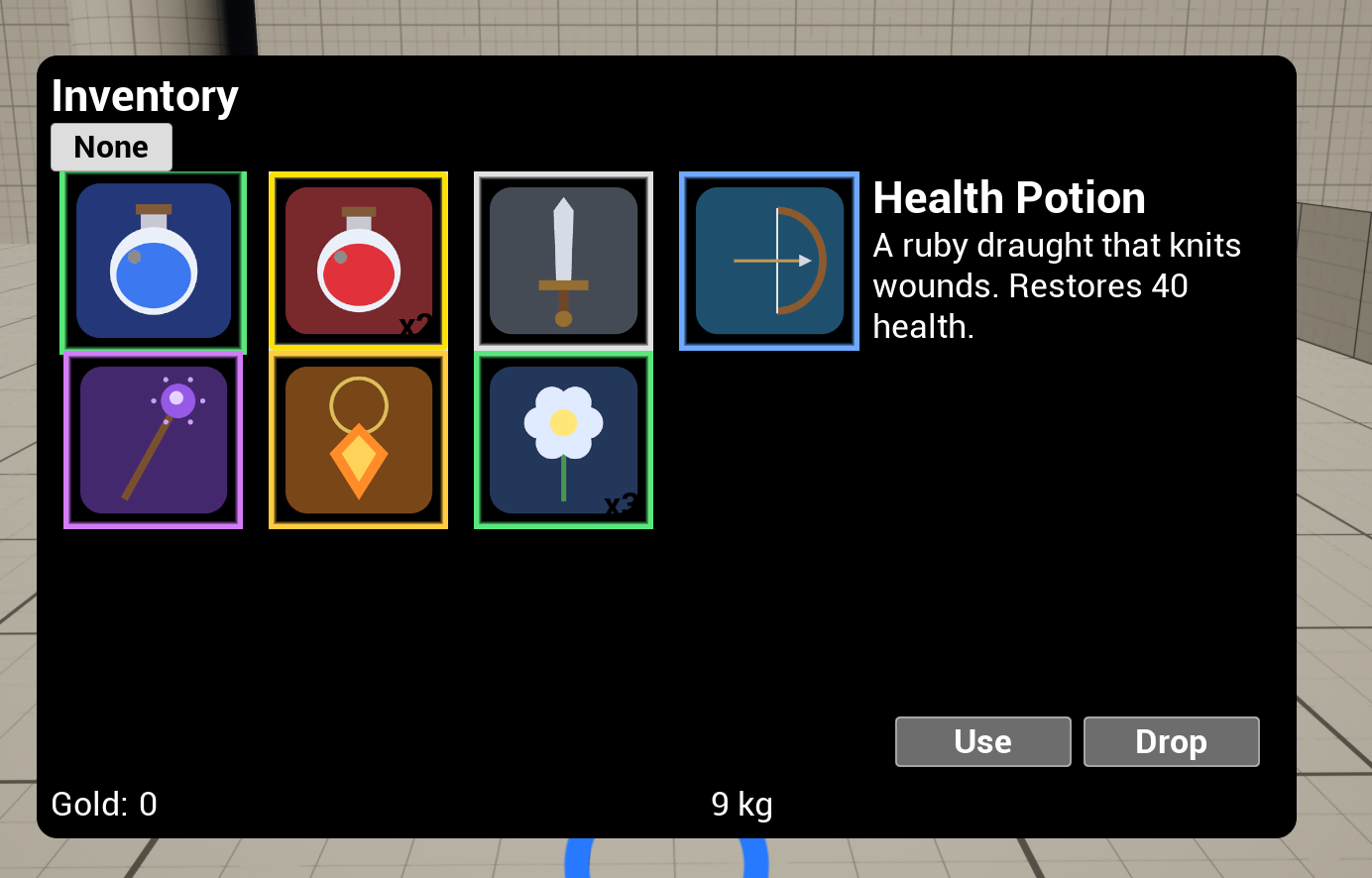
ViewModel Configuration
Every widget using the UMG Viewmodel plugin (opens in a new tab) has to say where its ViewModel comes from. That’s the Creation Type, which you set in Window > Viewmodels after adding a ViewModel to the widget.
Pick the wrong one and you won’t get an error. Your bindings will just sit there showing default values. If nothing is happening, check this - it’s got me a few times and I’m sure it will again!
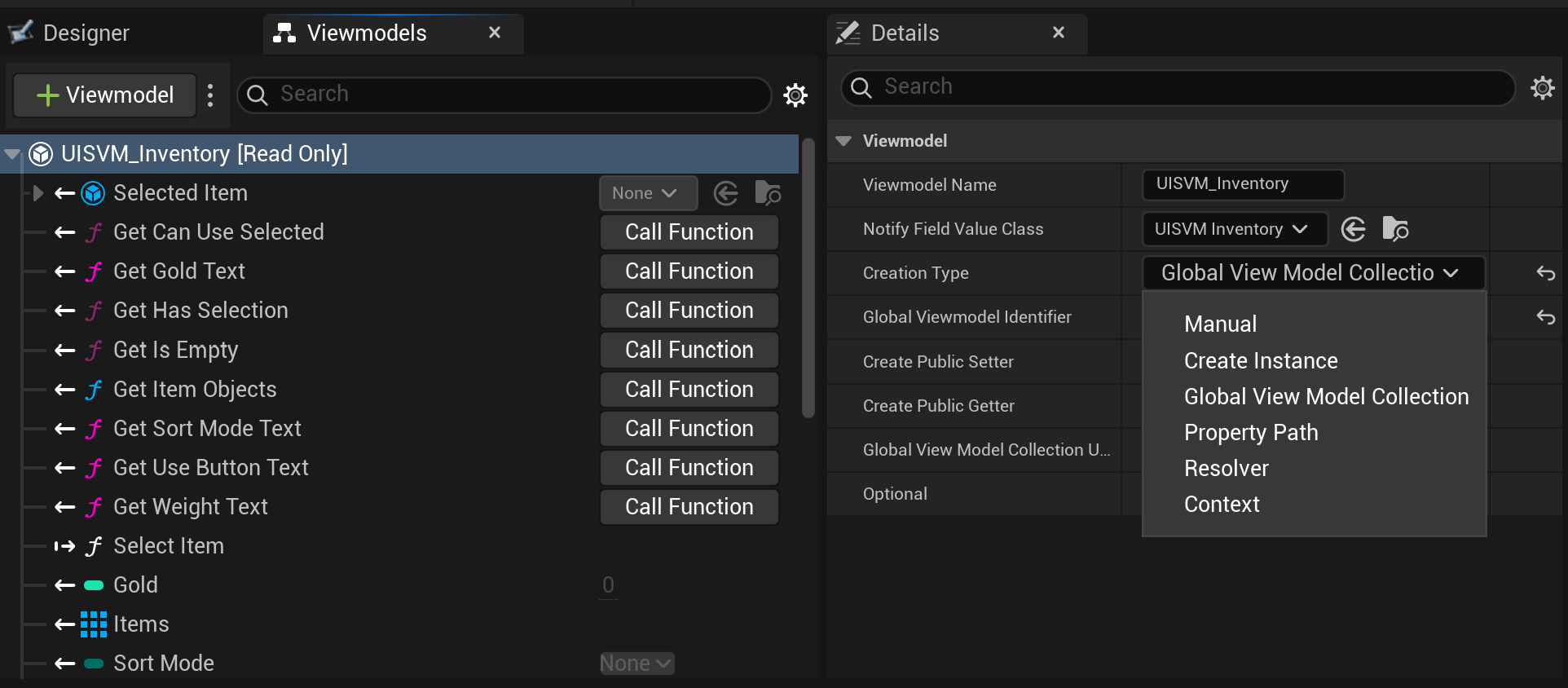
There are five options, but the inventory uses these two:
Global Viewmodel Collection is the one from the last post. C++ registers a ViewModel under a name, and every widget that asks for that name gets the same instance. WBP_Inventory asks for Inventory, just like the HUD’s bars ask for PlayerStats. Watch the order (register it before the widget initializes) and the spelling (Inventroy is a different name, and the plugin won’t help you).
Manual means the widget starts with no ViewModel at all, and something else has to hand one over. Manual is always treated as Optional, so it doesn’t log a warning while it’s empty. Empty is expected until you assign something. You can set it in blueprints or C++. This project does it in Blueprint, with the setter node the plugin generates for each Manual slot.
The setter is named after the slot in the widget’s Viewmodels panel, so the tile’s is Set Item.
Manual is often used when whatever owns the widget already has the VM. The inventory, for example, has VM’s for all of its item entries. This means we can pass Item VMs to the details panels or tooltips.
You can find more info about the creation types in the ViewModel Plugin docs (opens in a new tab)
Note: There’s also a resolver, which is a class you can write whose only job is to fetch or create a viewmodel. This is undocumented and, ironically, seems to be one of the favored approaches based on my conversations with other UI folks.
Using ViewModel’s to Fill the Inventory
WBP_Inventory is mostly one TileView (opens in a new tab), which is a ListView that lays its entries out in a grid. Three settings on it matter:
- Entry Widget Class =
WBP_ItemEntry, the tile - Entry Width / Height = 96
- Selection Mode = Single
The items come from the global Inventory ViewModel, which pays attention to the gameplay system. The ViewModel exposes its items as a TArray<UObject*>, which we use with the Set List Items function on our ListView:
/** Items as UObject*: exactly the type ListView/TileView "Set List Items" takes, so it binds with no conversion. */
UFUNCTION(BlueprintPure, FieldNotify, Category = "Inventory")
TArray<UObject*> GetItemObjects() const;
One binding row, ItemObjects -> ItemTileView -> Set List Items, and the list fills itself. No loops, no list code in the graph.

Every item in the list has its own ViewModel, UUISVM_ItemEntry, and the inventory ViewModel caches them. When the inventory changes, existing entries are updated in place, not thrown out and rebuilt:
TObjectPtr<UUISVM_ItemEntry>& Entry = EntryCache.FindOrAdd(Id);
if (!Entry)
{
    Entry = NewObject<UUISVM_ItemEntry>(this);
    Entry->InitFromRow(Id, *Row);
}
Entry->SetCount(Totals[Id]);
Entry->SetEquipped(Inventory->IsItemEquipped(Id));
Drink one of three potions and the potion entry is still the same object. The TileView keeps the same tile, only the count changes, and you don’t lose your selection.
One snag I ran into is using the appropriate accessor. If the TileView is declared in a C++ base class and marked private you may get this error:
The field for source ‘ItemTileView’ exists but is not accessible at runtime.
So it exists, and it knows it exists, but it can’t get at it. The widget is there and the name is right. The BindWidget meta tag is enough for C++ to find the widget, but View Bindings are compiled on the Blueprint side, so Blueprint has to be able to see it too:
protected:
    UPROPERTY(BlueprintReadOnly, meta = (BindWidgetOptional))
    TObjectPtr<UTileView> ItemTileView;
It’s protected because Unreal won’t let you put BlueprintReadOnly on a private member unless you add AllowPrivateAccess, which is not my preference.
Drawing Inventory Items
WBP_ItemEntry is a Size Box with a bunch of sub-widgets we need to set up and keep updated.
ListView entries are pooled. The TileView only creates as many tile widgets as it needs, and recycles them as items come and go. To guarantee the tile is showing the correct item it gets a Manual ViewModel slot, a UUISVM_ItemEntry named Item, and the list hands it over every time it gives the tile an item.
That handover is the only logic left in the tile’s graph:
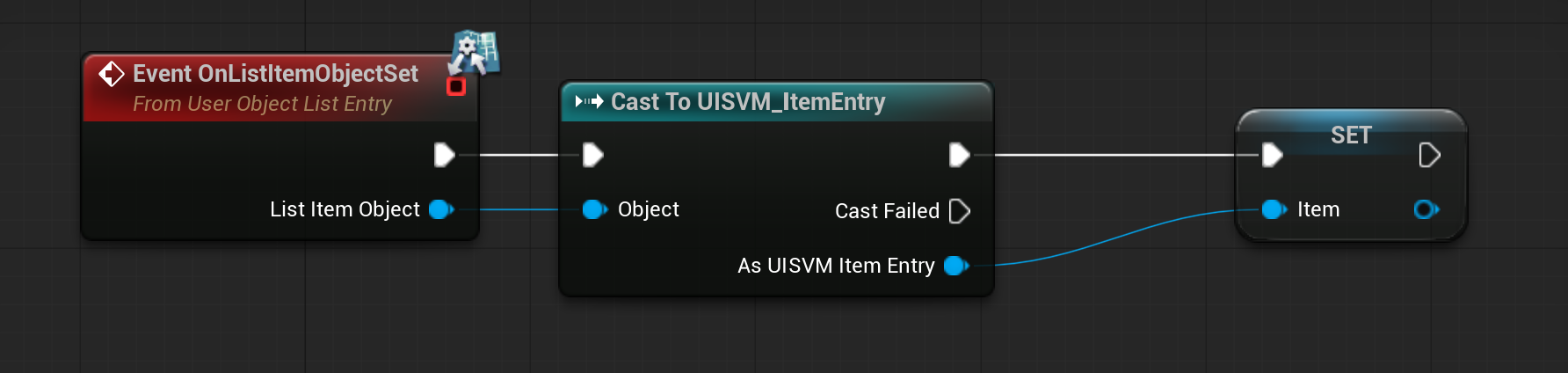
Everything else lives in View Bindings. Item.IsSelected shows the selection border, Item.CountText and Item.ShowCount handle the count, Item.Icon sets the icon, and Item.IsEquipped shows a little equipped badge.
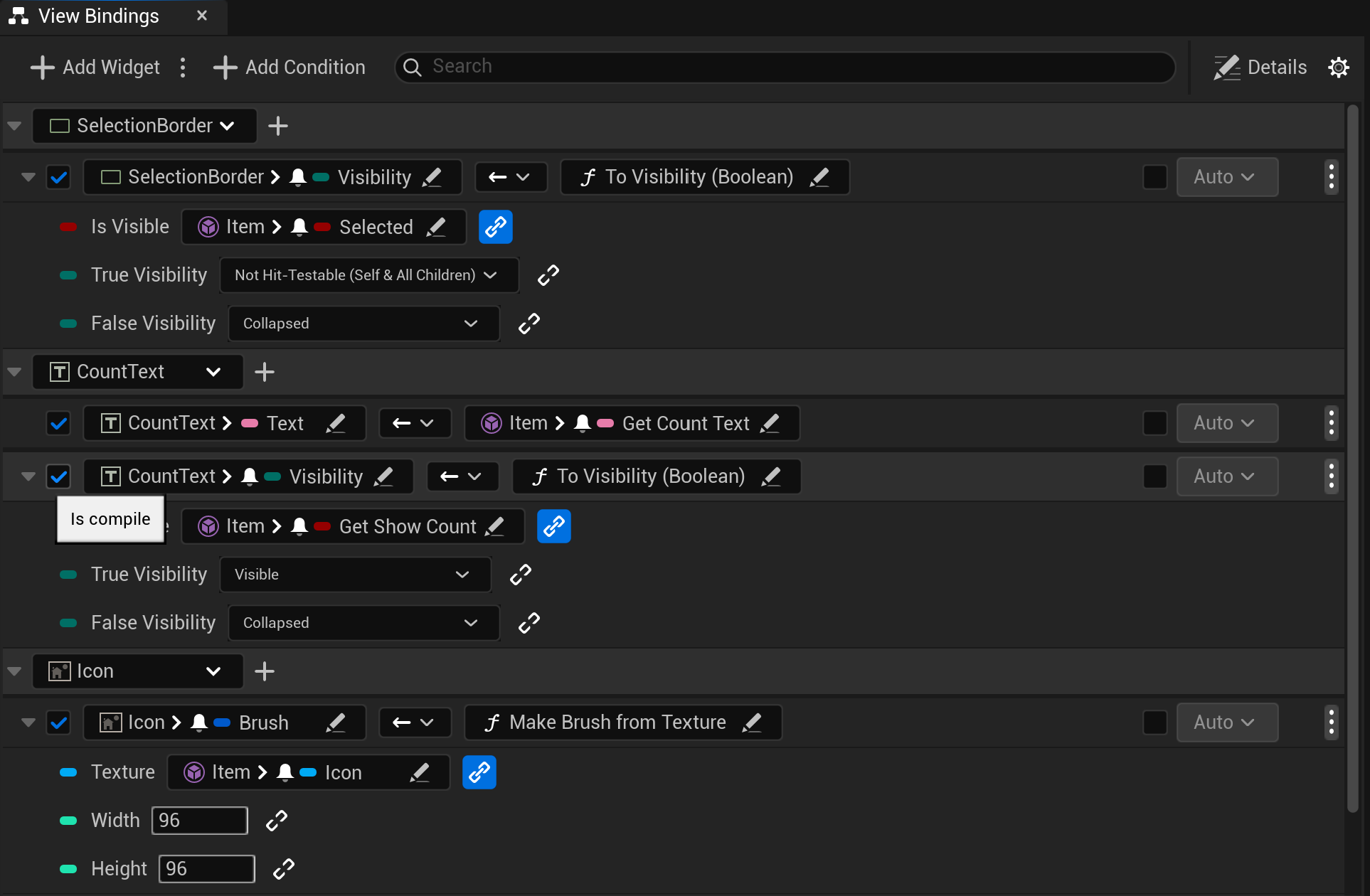
You could fill the tile in the graph when its item is set, and it would work right up until something changed later, like the selection. Whenever possible the graph should only hand the widget its ViewModel, and everything else happens via bindings. This keeps debugging predictable.
The rarity glow is the one snag on the tile. Glow uses one material, M_UI_RarityGlow, with a RarityColor parameter, so a single material covers all five rarities. But a material parameter isn’t a widget property, so there was nothing to bind to.
The fix is to create a function to use in the binding. SetRarityColor(LinearColor) grabs the dynamic material from Glow and sets the parameter, and Item.GetRarityColor binds to that.

Adding Interactivity
The inventory screen’s C++ base class forwards the TileView’s clicks:
void UUISInventoryWidget::HandleItemClicked(UObject* Item)
{
    if (UUISVM_Inventory* VM = GetInventoryViewModel())
    {
        VM->SelectItem(Cast<UUISVM_ItemEntry>(Item));
    }
}
Something to note here, ListView’s do a ton of heavy lifting for you handling which item is hovered, selected, focused, etc. When I was first learning I wrote a lot of this and it conflicted with the built-in functionality that lead to some debugging and refactoring (Sorry former team members!)
We can leverage this built-in featureset: When the selection changes, the ViewModel updates the old and new entries, then alerts everything that depends on the selection:
void UUISVM_Inventory::SetSelectedItem(UUISVM_ItemEntry* InValue)
{
    UUISVM_ItemEntry* Old = SelectedItem;
    if (UE_MVVM_SET_PROPERTY_VALUE(SelectedItem, InValue))
    {
        if (Old) { Old->SetSelected(false); }
        if (InValue) { InValue->SetSelected(true); }
        UE_MVVM_BROADCAST_FIELD_VALUE_CHANGED(GetHasSelection);
        UE_MVVM_BROADCAST_FIELD_VALUE_CHANGED(GetCanUseSelected);
        UE_MVVM_BROADCAST_FIELD_VALUE_CHANGED(GetUseButtonText);
    }
}
The tile never asks the TileView anything. Its border is bound to Item.IsSelected, and that’s it.
SelectedItem is itself an item ViewModel, and I wanted to bind its name and description directly. So WBP_Inventory gets a second Manual slot, SelectedEntry, plus a one-input function, SetSelectedEntry, whose entire body is the Set SelectedEntry node. Bind Inventory.SelectedItem → SetSelectedEntry, and from then on SelectedEntry.DisplayName, Description and RarityName bind like anything else. HasSelection hides the panel when nothing’s picked.
Connecting Buttons to ViewModels
This is the biggest change from the HUD. The buttons don’t actually do anything. Each one calls a verb on the ViewModel:
UFUNCTION(BlueprintCallable, Category = "Inventory") void UseSelected();
UFUNCTION(BlueprintCallable, Category = "Inventory") void DropSelected();
UFUNCTION(BlueprintCallable, Category = "Inventory") void CycleSortMode();
The Use button’s On Clicked is two nodes: Get Inventory View Model > Use Selected. The ViewModel passes it to the inventory component, which drinks the potion or equips the sword, and the result comes back through the same bindings as everything else.
Use a health potion with the menu open and a few things happen at once. The count drops, the tile disappears if it was your last one, and the health bar on the HUD behind the menu goes up. This is all driven with view bindings.
The ViewModel also works out what the buttons should look like:
bool UUISVM_Inventory::GetCanUseSelected() const
{
    if (!SelectedItem || !Inventory) { return false; }
    const FUISItemRow* Row = Inventory->FindRow(SelectedItem->ItemId);
    return Row && (Row->bConsumable || Row->bEquippable);
}
CanUseSelected drives the Use button’s Is Enabled. UseButtonText switches the label between Use, Equip and Unequip, and the tile’s badge follows Item.IsEquipped. We could take this further and enforce some gameplay rules like making sure the player doesn’t have full HP before using a potion.
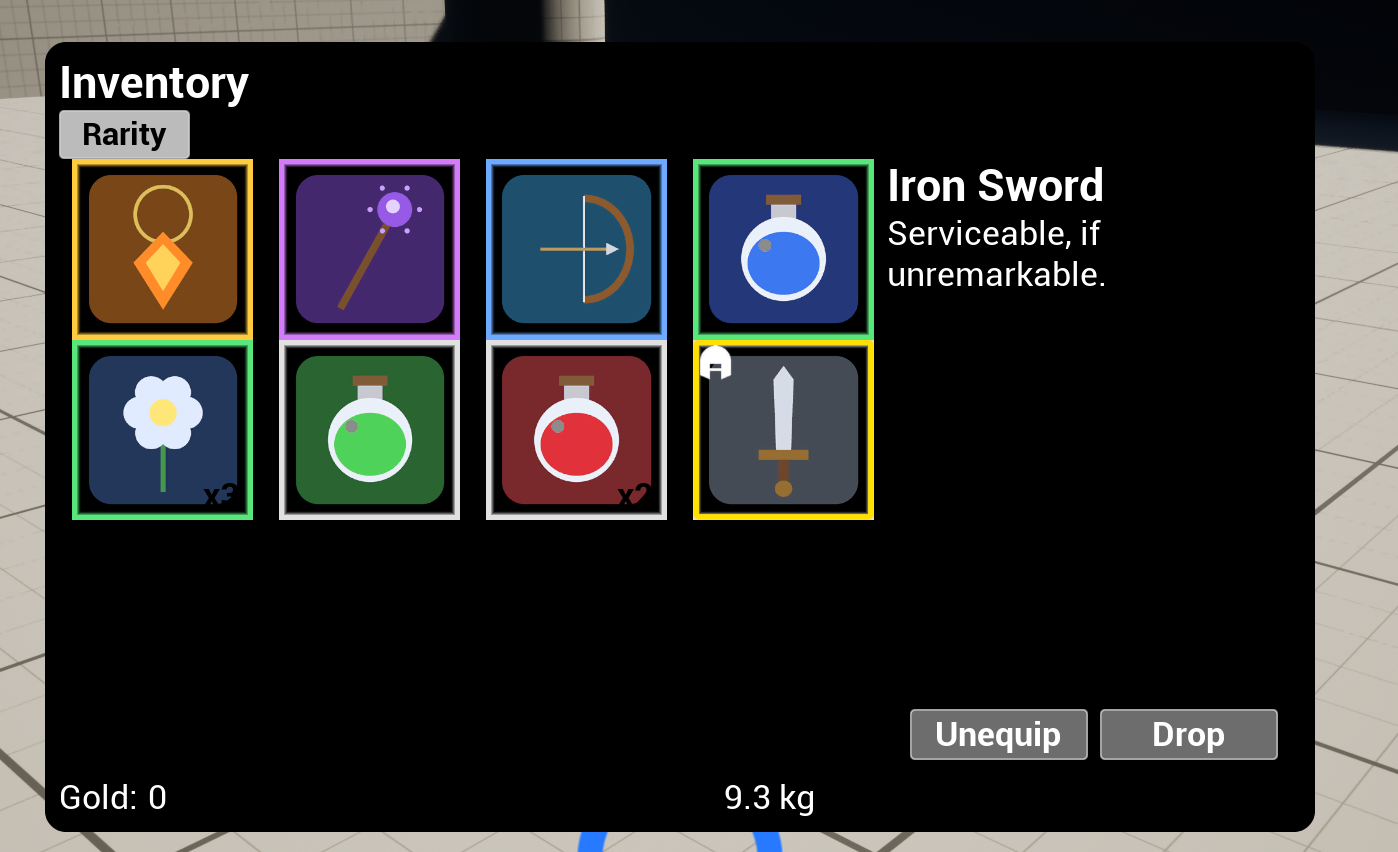
Sorting is more of the same: Sort calls CycleSortMode, the ViewModel reorders its array, and the TileView redraws.
General Guidelines
Keep graph logic to a minimum. If it’s on screen, it’s a binding. The graph hands widgets their ViewModels and not much else. Bindings react to changes for free, and they’re all in one window instead of scattered across event graphs. As long as widgets are named correctly, the bindings should work. This allows artists to do whatever they want without breaking anything.
The UI shouldn’t know game rules. Whether an item can be used is a gameplay question, so the widget shouldn’t have an opinion. It asks CanUseSelected from the VM and greys out the button. When the rules change, no widget changes with them.
Formatting belongs in the ViewModel. “x25”, “12.5 kg”, “Unequip” and the sort label are all FText getters in C++. They’re easy to find, easy to test, and ready for localization.
One rule born of minor annoyance: There’s no built-in conversion function in View Bindings for turning an enum into text. Blueprint’s “Enum to String” is a special graph node, not a regular function, so it never shows up in the conversion list, and writing a generic “any enum” version isn’t simple. So every enum gets its own little getter:
FText UUISVM_Inventory::GetSortModeText() const
{
    return UEnum::GetDisplayValueAsText(SortMode);
}
Add a UE_MVVM_BROADCAST_FIELD_VALUE_CHANGED(GetSortModeText) in SetSortMode, put UMETA(DisplayName = "...") on the enum values for nice labels, and you’re done. One extra function per enum. Epic please help. :)
Next Up
This isn’t quite controller friendly yet (You can’t use/equip or drop items), and in general everything built is still quite ugly, so I’ll solve those next!
If you made it this far, thanks for taking the time to read. If you have questions about UI on any project, whether in a game engine, app or the web, email me at hello@dominic-sabatier.ca.