Accessibility Is UX
When I teach UX, accessibility is the topic I always wish I had more time for. I’ve also been beta testing an internal app where it hadn’t come up yet. Among fellow devs and students it’s usually the thing you get to “after”, which in practice means never.
I’ve been pushing to make it a higher priority on that app, and it’s moving up the list. But it’s hard to tell people to care about something your own portfolio ignores. So I held my site and blog to the standard I want my students to meet. This is a tour of what’s in there, what Lighthouse thought of it, and where it still falls short.
Accessibility is UX
My position is simple: accessibility isn’t a separate discipline you bolt on at the end. It’s UX. If someone can’t use your site, the experience is bad, whatever the reason.
The best argument for building it in from the start is the curb cut effect (opens in a new tab). Curb cuts are the little ramps where a sidewalk meets the road. They were added for wheelchair users, and now everyone pushing a stroller, dragging a suitcase or riding a bike uses them without a second thought. Most accessibility work is like that. Captions help people in loud rooms. High contrast helps people reading on their phone in the sun. Keyboard support helps power users who hate reaching for the mouse.
Readable before pretty
The site uses Atkinson Hyperlegible (opens in a new tab), a typeface the Braille Institute designed for low-vision readers. Its whole job is making characters that usually look alike (a capital I, a lowercase l and a 1, or an O and a 0) look different. It also has a lot of support in neurodivergent and accessibility circles.
It’s a good font, but it isn’t perfect, and it doesn’t do much for dyslexic readers. One of my best friends is dyslexic and works with serial numbers and barcodes all day, long strings where one wrong character means the wrong part. He’s told me about his struggles with exactly that, and a font that separates a 0 from an O doesn’t fix it for him. I’d like to find one that works for readers like him too.
Colour gets the same treatment. WCAG (the Web Content Accessibility Guidelines, the standard most accessibility laws point to) asks for a contrast ratio of 4.5:1 between body text and its background for level AA, and 7:1 for the stricter AAA. My body text sits at 9.9:1 in light mode and 12.3:1 in dark mode, and even the small grey labels clear 7:1. The site also follows your operating system’s light or dark setting, so it isn’t flashbanging anyone at midnight.
Keyboards, screen readers and the boring stuff
A lot of accessibility is plumbing nobody notices when it works.
The pages use proper landmarks (header, navigation, main content and footer), and headings go in order, so a screen reader user can jump around the page the way a sighted reader skims it. Every image has alt text that says what’s in it, not “screenshot1.png”. Buttons and links are at least 48 pixels tall, which is a comfortable target for a thumb.
Focus outlines are always on. Plenty of sites remove the outline because a designer thought it was ugly, which leaves keyboard users guessing where they are. Mine get a 2px outline in the accent colour.
The Work menu in the header is a real button that tells screen readers whether it’s open or closed. Escape closes it and puts you back on the button, and clicking or tabbing away closes it too. That’s three small behaviours, and missing any one of them makes the menu feel broken to someone.
I like it when websites warn you before a link opens a new tab, so mine do too. Links that open a new tab get a little ↗ arrow. Screen readers hear “opens in a new tab” instead of “north-east arrow”, because the icon has empty alt text in CSS:
.ext-link::after {
  content: "\2060\2197\FE0E" / "";
}
The \2060 at the start is a word joiner, an invisible character that stops the browser from wrapping the arrow onto a line by itself. Nobody will ever notice it, which is the point.
Respecting people who don’t want things moving
Some people get dizzy or nauseous from motion on screen. Operating systems have a “reduce motion” setting for this, and browsers expose it to CSS as prefers-reduced-motion. When it’s on, my site turns off smooth scrolling, the header’s shrink animation and the carousel’s sliding.
@media (prefers-reduced-motion: no-preference) {
  html { scroll-behavior: smooth; }
}
Writing it this way round means motion is opt-in. If a browser doesn’t know about the setting, you get the calm version.
The blog gets it for free
The blog runs on Hugo (opens in a new tab), a static site generator, and Hugo lets you override how Markdown turns into HTML. I use that so I don’t have to remember accessibility while I’m writing. Any external link I type in a post automatically opens in a new tab and gets the “opens in a new tab” text for screen readers. Every image gets its width and height added from the file, so the page doesn’t jump around as screenshots load. Code blocks can be focused with the keyboard, so you can scroll a long line of C++ without a mouse.
The less I have to remember, the less I forget.
The scoreboard
Here’s what Google’s Lighthouse audit thinks of the home page:
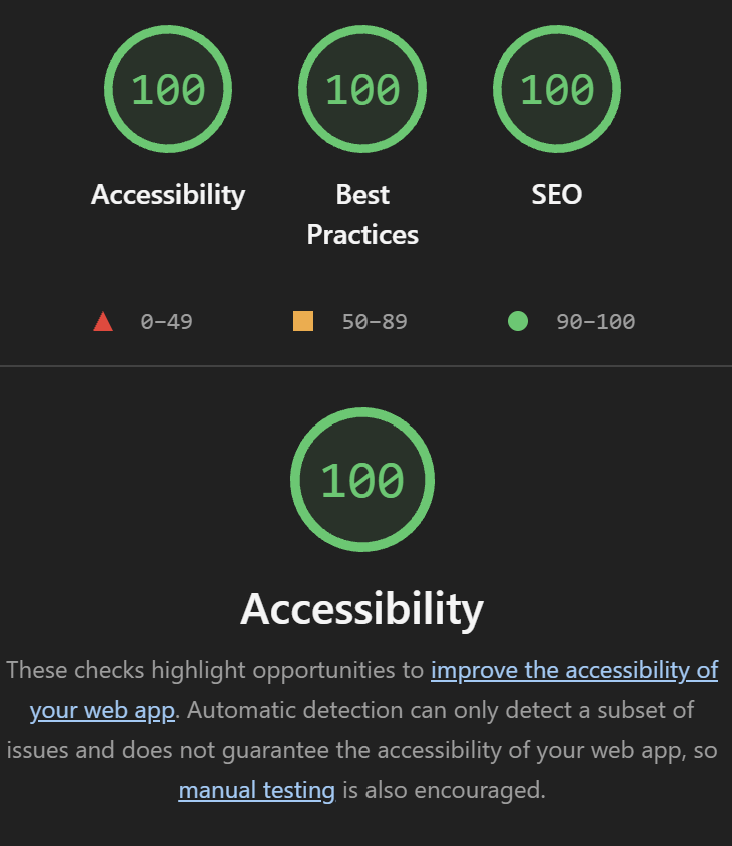
I’ll take it. But read the small print in that screenshot: automatic detection only catches a subset of issues. Lighthouse can check that an image has alt text. It can’t check that the alt text makes any sense. A perfect score means you’ve passed the checks a robot can run, which is where testing starts, not where it ends.
Known gaps
When I tested by hand I found a few things Lighthouse didn’t:
- Blog links are colour-only. Links inside blog paragraphs are blue but not underlined, and that blue is too close to the body text for some readers to tell apart. They need underlines.
- The sticky header can get in the way. At high zoom, the header that follows you down the page takes up a big chunk of the screen, and it can cover whatever has keyboard focus.
- Some button borders are faint. A few round buttons are drawn mostly by a thin border that’s lighter than it should be in light mode.
- The carousel is awkward. The Nightingale screenshots slide past in a carousel, and even with the right labels and keyboard support, carousels are clumsy with a screen reader. I’d like to replace it with something simpler.
None of these are hard to fix, and they might even be fixed by the time you read this.
The gamepad experiment
I’m a game UI programmer, so of course my first idea was gamepad support for the website. Browsers have a Gamepad API (navigator.getGamepads()) that lets a page read controller input, and I wanted you to be able to browse my portfolio with a D-pad.
It didn’t survive contact with screen readers. To make the D-pad move between things, I had to override the arrow keys, and screen readers and keyboard users already expect those keys to do something specific. A gamepad user wants up and down to jump between cards. A screen reader user wants them to read the next line. I couldn’t give both what they expected.
The tab order was the other problem. Game UI is designed around a focus grid you move through in two dimensions. Web pages are designed around a reading order that runs top to bottom. Screens that look like game UI don’t have an obvious tab order, and I couldn’t find one that made sense for both. I had to pick, and I picked the web.
I haven’t given up on it, though. It’s an idea I want to explore further.